
Introducing Eventbrite!
When planning an Orchestra marketing event, you can now use the Eventbrite integration within HubSpot to track registration and event activities from start to finish. Previously, staff would need to create a marketing event within HubSpot and then manually organize registrants, calendar-add intent, and invite follow-up activity from HubSpot registration exports using the Orchestra - Event RSVP Tracker Template.
With Eventbrite connected to HubSpot, Eventbrite events sync information into HubSpot, automatically creating a corresponding marketing event that tracks registrations, cancellations, attachments, logistics, and more internally. As invitees RSVP leading up to the start date, HubSpot continues to update these records using information collected by the Eventbrite event.
Create an event
To proceed with a marketing event, create the event in Eventbrite. Fill in basic information, including event name, description, date/time, location, registration settings, and a cover image. To ensure that your event is set to sync to HubSpot, open Settings > Connected Apps in the HubSpot app and make sure that the Sync toggle is turned on for that event. By default, sync is enabled for new events. This feature is unavailable in the browser version of HubSpot.
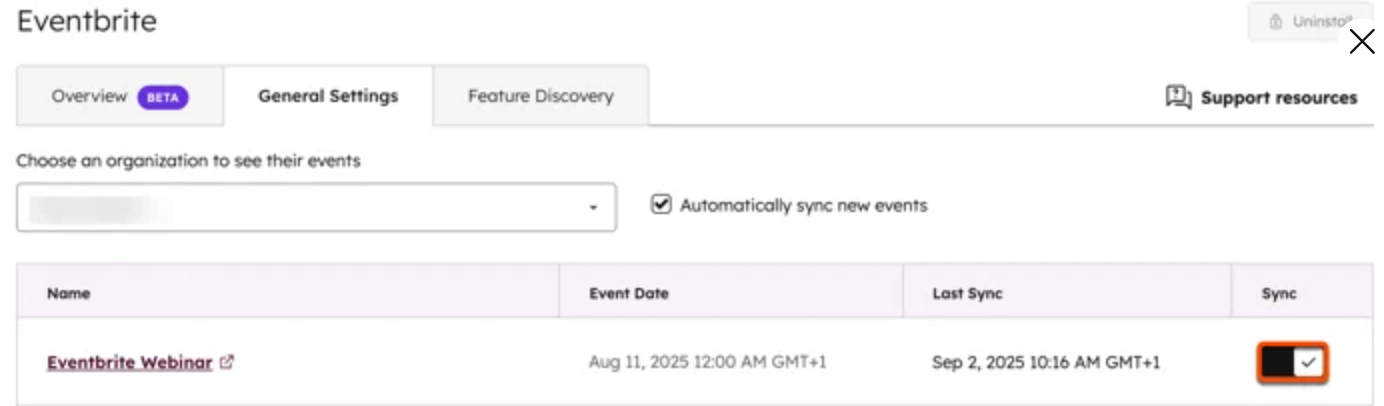
Once synced, the Eventbrite event will appear in HubSpot as a marketing event via the integration. Information from the Eventbrite event, such as name, date, and image, are automatically uploaded into the HubSpot record. Do not manually create a HubSpot event record.
Below is the HubSpot view of a sample event created in Eventbrite. At any time, you can view all Eventbrite information and contact activity, such as registrations, cancellations, attendees, and no-shows, in the Marketing Events > Overview.
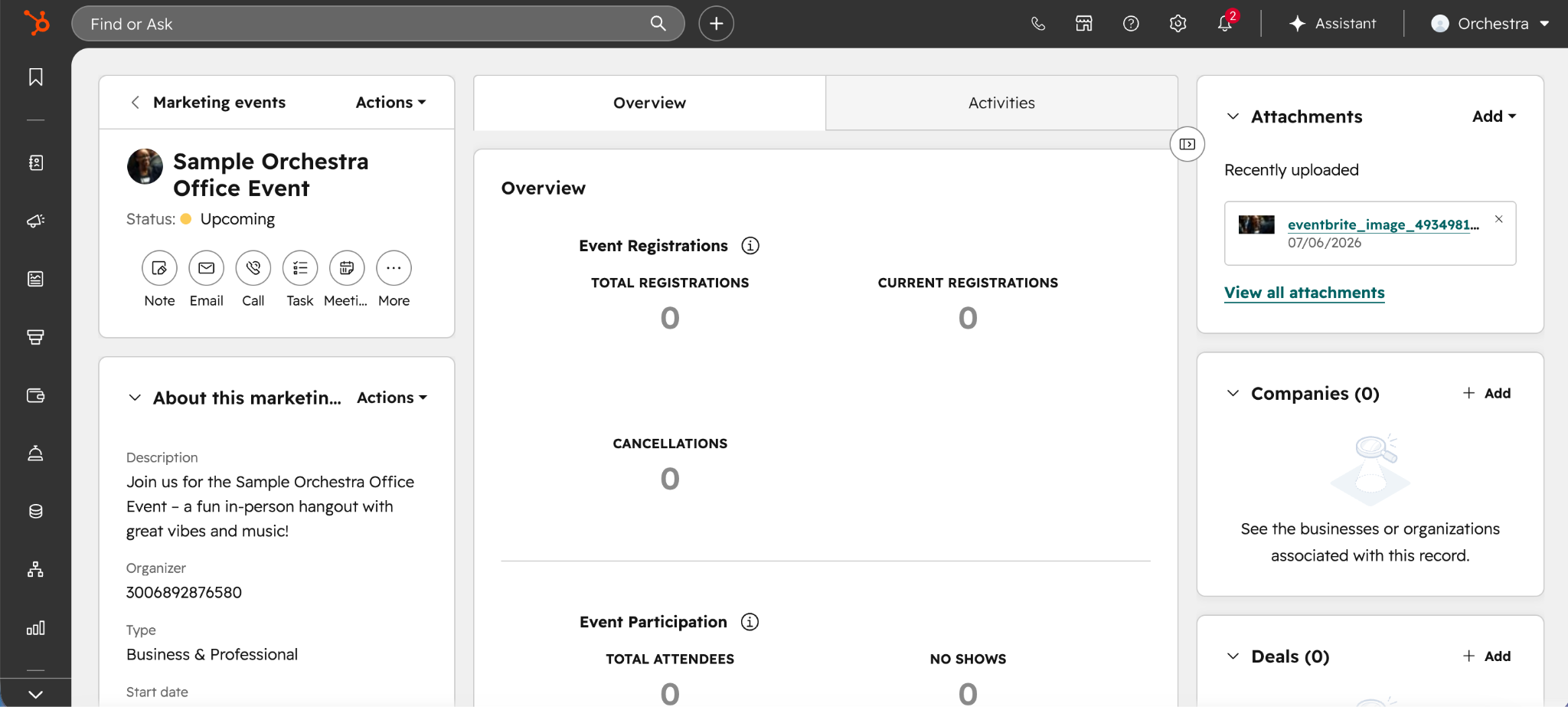
As invitees begin to register for the event, Eventbrite syncs the registrations into HubSpot contacts. If they are a pre-existing contact, HubSpot logs an Eventbrite registration event onto their record. If they do not already exist as a contact, HubSpot will automatically create a new contact record once they register. HubSpot then updates any related properties, such as Last Registered Event Name and Last Registered Event Date into contact fields. As you approach the event, Eventbrite can also sync cancellations and refunds. During the event, you must check in attendees within the Eventbrite app, allowing their new statuses to sync into HubSpot records and tracking event information seamlessly on both platforms.
Monitor the event
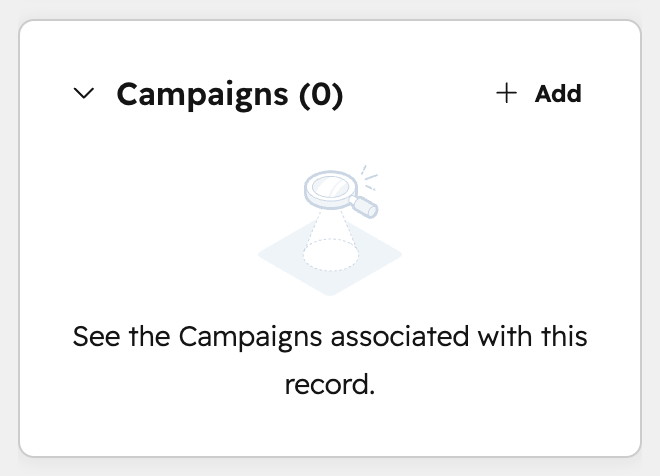
Once the event has synced, navigate to Marketing > Events and open the specific event. Confirm the event name, status, image, and registration counts. Based on the case, associate the event to a Campaign. This will auto-associate all registrants and attendees with the same Campaign.
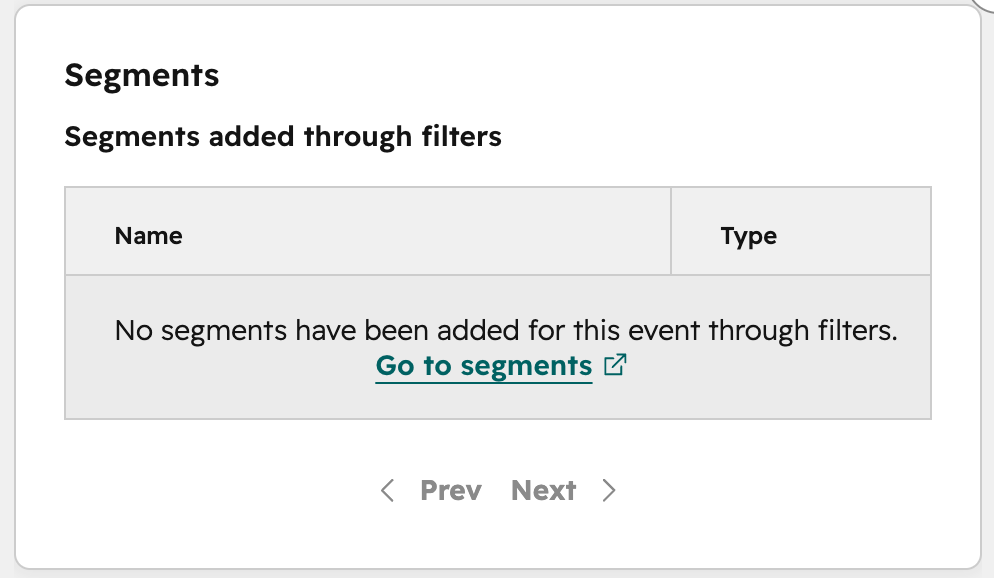
As you approach the event, you can build registrant and attendee segments in Segments (Lists) to send reminder and follow-up communications via HubSpot’s native email function.
Note
Whenever you edit the Eventbrite event, the changes made are automatically updated into the HubSpot record. However, this integration is a one-way workflow. If you click Edit on the marketing event or Add participant to marketing event in HubSpot, the new information will not update in the Eventbrite event and data inconsistencies will occur between the two platforms.