
Through your email:
- Navigate to the email you received from a potential client and click add to HubSpot. If this button does not appear, you need to download the HubSpot integration. (For emails sent to aliases, click the contact's email address)

- The contact's information (name, email address) should auto populate but verify that this information is correct and add any missing information. (ie: job title)
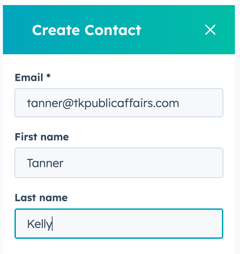
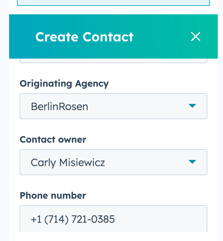
- Scroll to fill in the remaining information related to the lead.
- Originating Agency: Which firm did the contact reach out to?
- Contact Owner: Who on the client team will most likely lead this opportunity?
- Phone Number: If available, the contact's phone number.
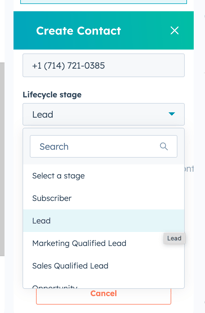
- Lifecycle Stage: Select Lead. This should only be done if you believe this contact will be the primary point of contact for this lead.
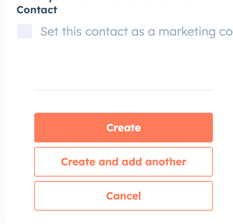
- Click Create.
[Check the email thread to see if the primary contact has cc'd anyone at their company. Select their contact and complete the prior steps but keep the lifecycle stage as Subscriber.] - Click Open in CRM to navigate to HubSpot.
- If the company is not already in the system, HubSpot will create a company utilizing the contact’s email address. Fill out the properties of the company as much as you can.
- Industry
- Domain: [www.TK.com]
- Company Owner: Who on the client team will most likely lead this opportunity?
- If the company is not already in the system, HubSpot will create a company utilizing the contact’s email address. Fill out the properties of the company as much as you can.
- If the company is already in HubSpot, check to see if they are a past client. If they are, change the lead type from New Business to Returning Client.
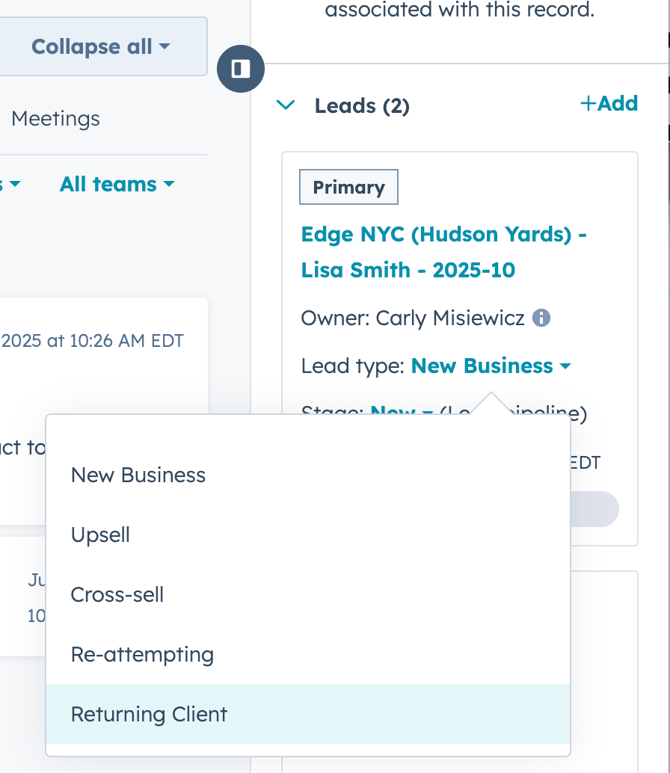
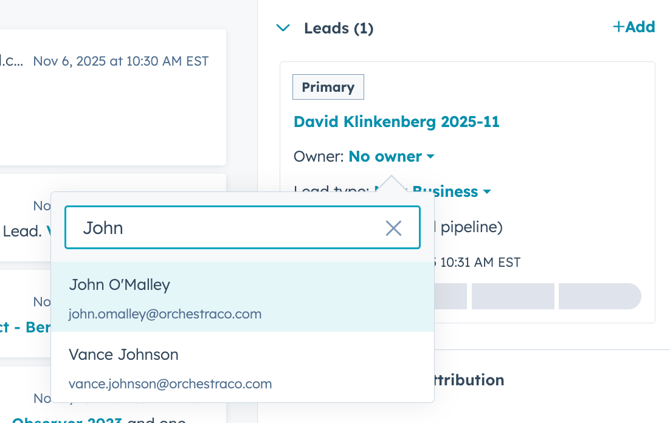
- Change the lead owner to the appropriate person by searching their full name or email address.
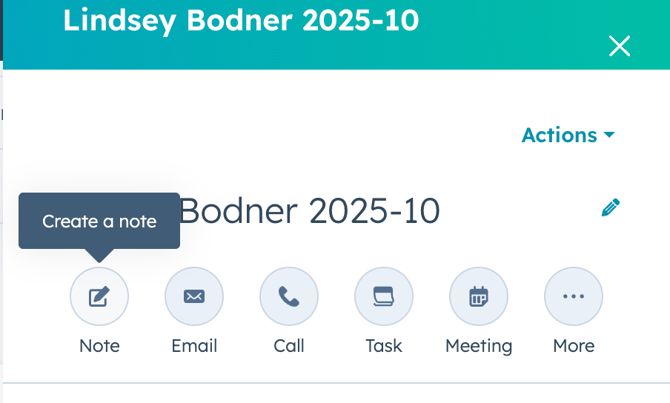
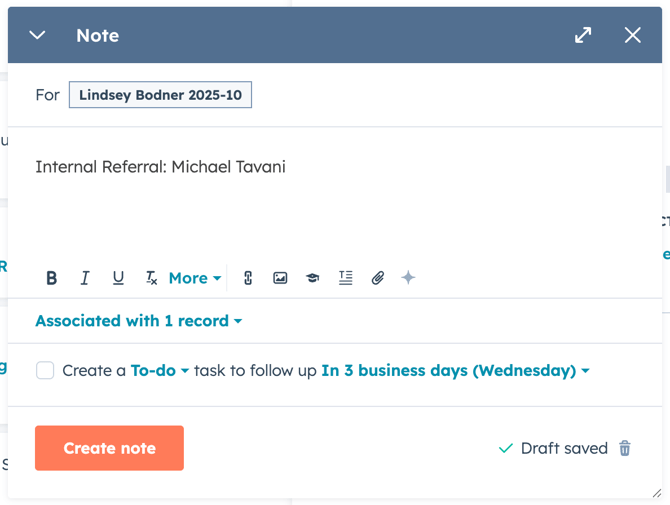
- If the company came to us from an internal referral or another source, add it as a note to the lead with the contact' email address. Associate the note with the contact, company and lead by clicking "Associated with 1 record."
Through the contact form:
These leads, along with their contact information, should automatically be added to HubSpot.
- Navigate to HubSpot and update the company owner, lead owner and contact owner.
- Verify that the form has been uploaded properly. If you cannot view the contact form under Activities, please copy the form and add it as a Note. Please add “[Firm name] Contact Form” at the top of the note and associate the note with the lead, primary contact and company.
Other forms of contact:
Unfortunately, the HubSpot integration does not work with voicemails, so these need to be manually put in. Start by creating the contact.
- If the contact is not known, create the lead off of the company.
- Lead Naming Convention: [Client] - [Primary Contact] - [Year]-[Month]