- Navigate to Deals.
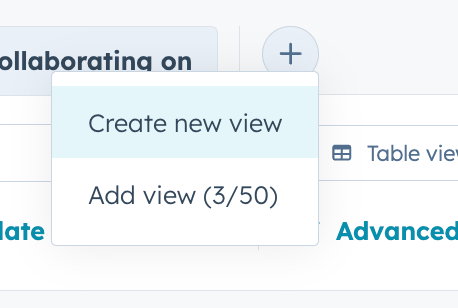
- Click the plus icon loaded at the top right, next to the tabs of other views and click Create new view.
- Select the format you would like your view to be in.
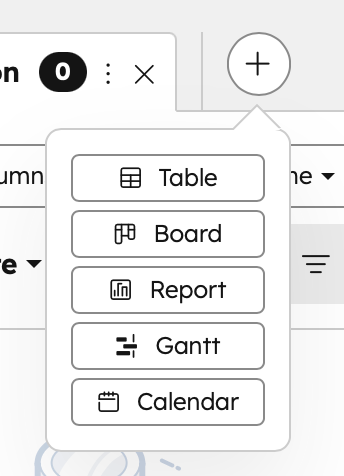
Table: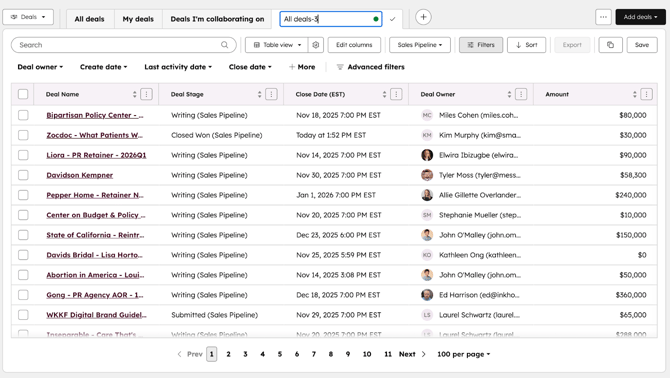
Board (recommended):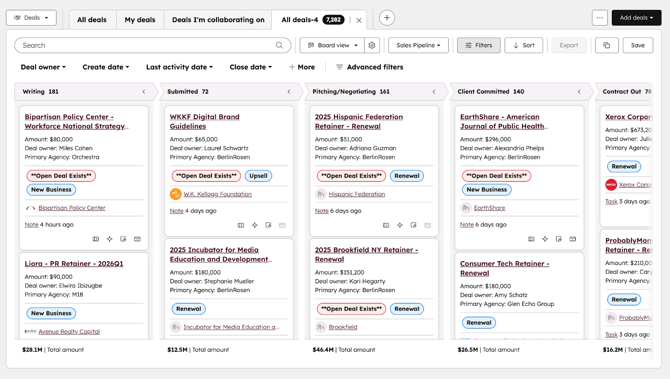
- Enter a name for the view.
- (Example) For deals you own:[Your Name]'s Deals
- (Example) For deals your agency/team owns or contributes to: [Agency/Practice] [Vertical] Deals (e.g., Cities Public Affairs Deals) - Click the check mark to save the name.
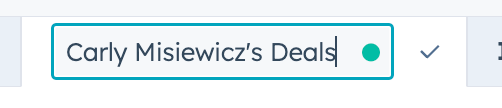
*To change the name after you’ve clicked the check mark, double click the text and then click on the check mark. - Click Advanced Filters.
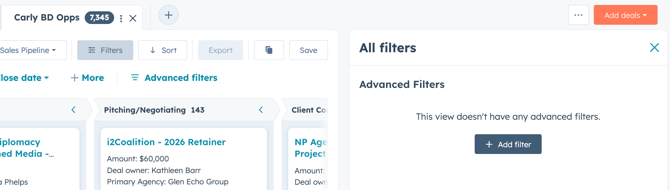
- Click + Add Filter and select the filters you want to apply.
For deals you own: Type in "Deal Owner" and select yourself.
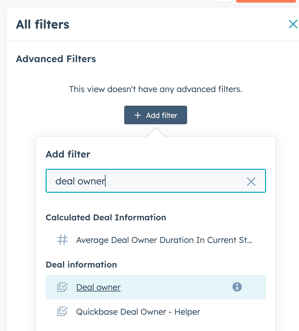
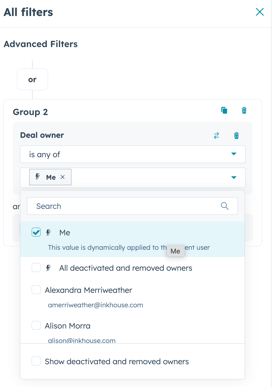
For deals your practice is a part of: Type in "Primary Agency" and "Secondary Agency and select your agency.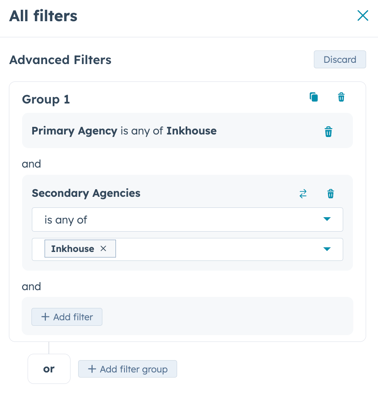
- Click Save.
English - United States
